
How to Import Bitly Links Into Recut Using a CSV File

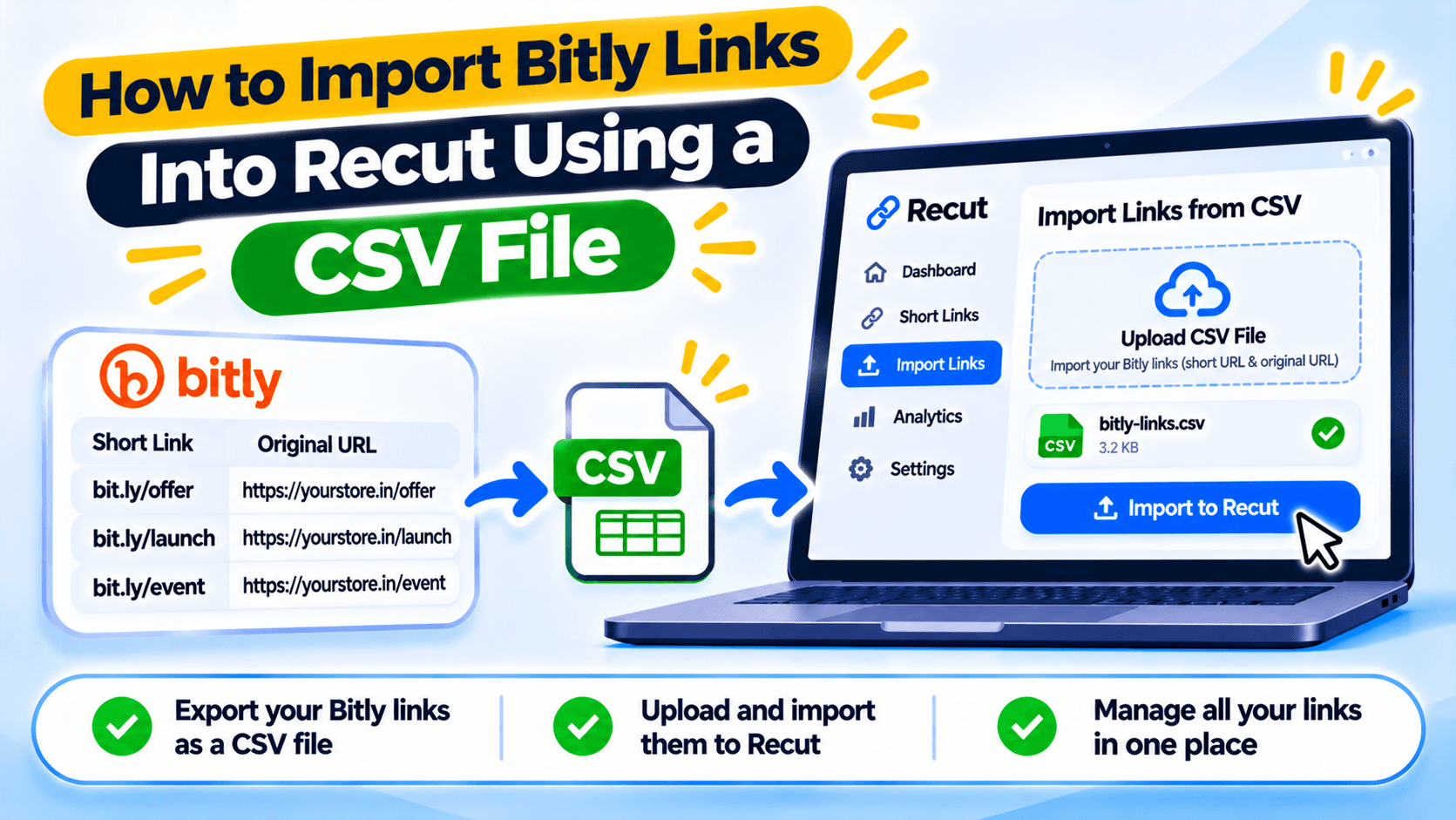
Export your Bitly links before moving
If you are moving from Bitly, start by exporting the links you want to keep. Save the original CSV somewhere safe and do not edit that copy. If you need old click reports, export those separately. The link importer moves link details; it does not bring historical click statistics into the new account.
Prepare the four CSV columns in the right order
The Recut importer expects four columns in this order:
longurl,alias,title,description
The first column must contain the full destination URL, including https:// or http://. The alias, title and description columns are optional. Keep the header row. The header names can differ, but the column positions must stay in this order.
Check a few rows before uploading
Open the CSV in a spreadsheet and check the first, middle and last rows. Make sure each destination works. Remove blank rows and check that commas inside a description have not shifted the columns. If you are unsure, make a small test file with three or four links first.
Upload the CSV to Recut
Sign in to your Recut account and open Links then Import Links. Upload the CSV file and review the result. The public import page says files with more than 100 links are processed in the background. You may need to return to the dashboard to check the import status.
Know what happens to duplicate links and aliases
Duplicate destination links in one upload are ignored. If an alias is already in use, the importer creates a unique random alias instead. That means the short link you receive may not match the alias from your Bitly export. Check the results before replacing links in your website or campaign.
Keep the old click reports
The importer does not bring historical click statistics across. Keep the Bitly export and any old reports if you need year-on-year comparisons. After the new links are created, test a sample and update the links you control.
Import your Bitly links into Recut
Use the Import Links tool in your Recut account to upload the CSV. Start with a small file, check the aliases and destinations after the import, and keep your original Bitly export because historical click totals are not imported.
Frequently asked questions
Can I import Bitly links into Recut using a CSV?
Yes. Export your Bitly link list, arrange the four required columns and upload the CSV through Links > Import Links.
What columns does the Recut importer need?
The required order is longurl, alias, title and description. The first column needs the full destination URL.
Will my Bitly click history move to Recut?
No. The importer moves link details, not historical click statistics. Keep your old reports separately.
What happens if an alias is already taken?
The importer creates a unique random alias. Review the imported links before replacing the old URLs in your campaigns.
What happens when I upload more than 100 links?
The public import page says files with more than 100 links are processed in the background.
Gaurav Kumar
AuthorWriting about link infrastructure, branded domains, retargeting pixels, and URL shortener analytics.